Server
Revision | Date | Description |
|---|---|---|
| 24.07.2024 | Init Changelog |
Introduction
GitLab is a web-based version control system that provides free open and private repositories, issue-following capabilities, and wikis. It is a complete DevSecOps platform that enables professionals to perform all the tasks in a project—from project planning and source code management to monitoring and security. Additionally, it allows teams to collaborate and build better software.
Deployment
The Autopay Gitlab Server has been deployed in a Self-Hosted model based on AWS resources.
Infrastructure
Autopay
The Gitlab Server, along with its other components (S3, roles with assigned appropriate permissions, etc.), is fully operational within the AWS infrastructure. The current informations are listed in the table below:
Attribute | Value |
|---|---|
Account |
|
Server |
|
OS |
|
Configuration |
|
Private IP |
|
Public IP |
|
DNS |
|
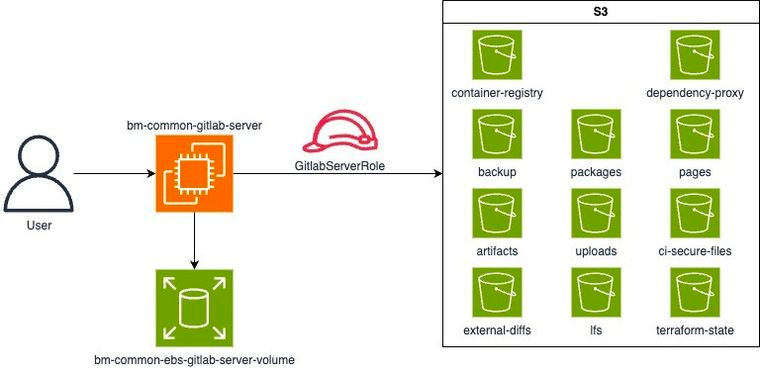
The Gitlab Server instance has been configured using an Ansible Playbook located in a Git repository.
Networking
For the proper functioning of the instances, the following ports have been opened:
Port | Protocol | Description |
|---|---|---|
80 | TCP | HTTP |
443 | TCP | HTTPS |
22 | TCP | SSH |
5005 | TCP | Container Registry |
-1 | TCP | Ping |
8060 | TCP | Metrics: Nginx |
9121 | TCP | Metrics: Redis |
9187 | TCP | Metrics: PostgreSQL |
9100 | TCP | Metrics: Node |
9229 | TCP | Metrics: Workhorse |
8082 | TCP | Metrics: Sidekiq |
9168 | TCP | Metrics: Exporter |
9236 | TCP | Metrics: Gitaly |
5001 | TCP | Metrics: Registry |
Maintenance
Install
Install and configure the necessary dependencies:
sudo apt-get update sudo apt-get install -y curl openssh-server ca-certificates tzdata perlNext, install Postfix (or Sendmail) to send notification emails. If you want to use another solution to send emails please skip this step and configure an external SMTP server after GitLab has been installed
sudo apt-get install -y postfixDuring Postfix installation a configuration screen may appear. Select 'Internet Site' and press enter. Use your server's external DNS for 'mail name' and press enter. If additional screens appear, continue to press enter to accept the defaults.
Add the GitLab package repository and install the package:
curl https://packages.gitlab.com/install/repositories/gitlab/gitlab-ee/script.deb.sh | sudo bashNext, install the GitLab package. Make sure you have correctly set up your DNS, and change
https://gitlab.example.comto the URL at which you want to access your GitLab instance. Installation will automatically configure and start GitLab at that URL.For
https://URLs, GitLab will automatically request a certificate with Let's Encrypt, which requires inbound HTTP access and a valid hostname. You can also use your own certificate or just usehttp://(without the s ).If you would like to specify a custom password for the initial administrator user ( root ), check the documentation. If a password is not specified, a random password will be automatically generated.
sudo EXTERNAL_URL="https://gitlab.example.com" apt-get install gitlab-eeBrowse to the hostname and login.
Unless you provided a custom password during installation, a password will be randomly generated and stored for 24 hours in
/etc/gitlab/initial_root_password. Use this password with username root to login.Set up your communication preferences.
Visit our email subscription preference center to let us know when to communicate with you. We have an explicit email opt-in policy so you have complete control over what and how often we send you emails.
Twice a month, we send out the GitLab news you need to know, including new features, integrations, docs, and behind the scenes stories from our dev teams. For critical security updates related to bugs and system performance, sign up for our dedicated security newsletter.
Update
Log into Gitlab Server instance with SSH.
Update APT repos:
apt updateList all upgradable package and check if
gitlab-eeexists on list:apt list --upgradableRun update:
apt upgrade gitlab-eeWait to update ends with output
Upgrade complete!(Optional) Verify if all Gitlab apps works:
gitlab-ctl status