How-to: Restore Terraform state to a previous version
Sometimes there are situations that require restoring a Terraform state file to a previous version (for example, overwriting the file with another project). The operation itself is not complicated, but requires turning on versioning on AWS S3 Bucket.
To perform the procedure, the following is necessary:
Access to the AWS Common account:
Ability to view and edit objects and their versions in AWS S3 Bucket for Terraform State.
Ability to view and edit the DynamoDB table with Terraform Locks.
Access to the AWS API (Terraform).
Instructions
To restore Terraform state file to a previous version, you need to:
Log in to the AWS Common account.
Go to the S3 console and find the terraform state bucket.
Locate the Terraform state file you are interested in (its path is defined in the backend configuration of the project).
In the file details, navigate to the
Versionstab.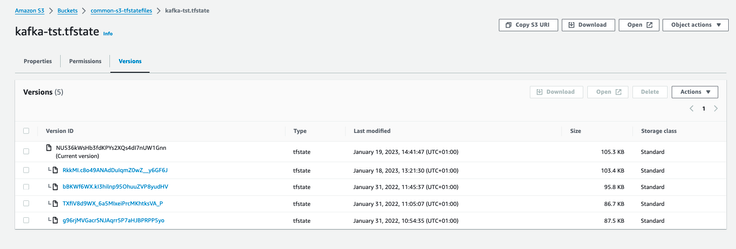
Find the version of the file you want to revert to (after selecting the desired version, you can open the file in a new tab using the
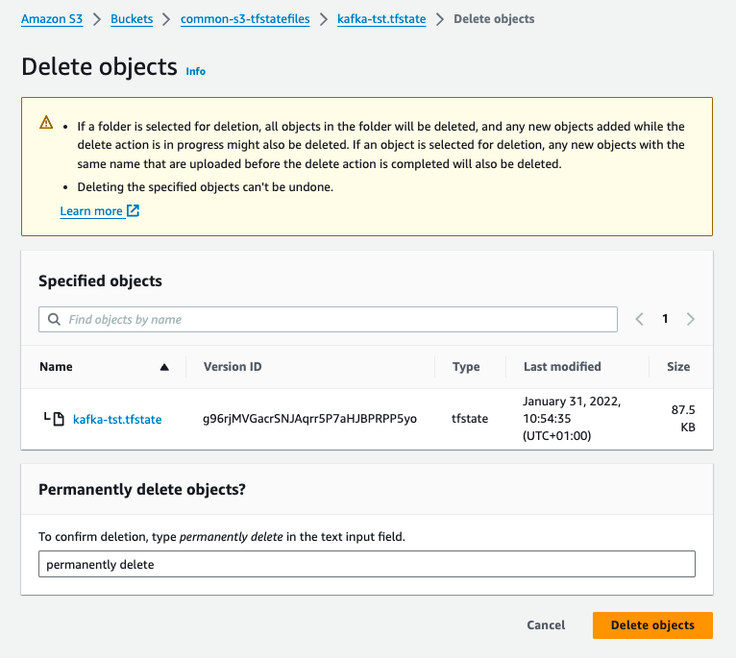
Openbutton).Once you've found the appropriate version, select all other versions newer than it (your preferred version should not be selected) and click
Delete.Confirm the deletion.
In the project directory, delete the
.terraformdirectory.Initialize the project. An error about an incorrect checksum should appear.
In the AWS console, navigate to the DynamoDB console. From the menu, select
Explore items.Select the table with
Terraform Locks.Expand the
Scan or query itemstab, then clickFilters.In the
Attribute namefield, selectLockID. In theConditionfield, chooseContains, and in theValuefield, enter the name of the Terraform state file. Confirm with theRunbutton.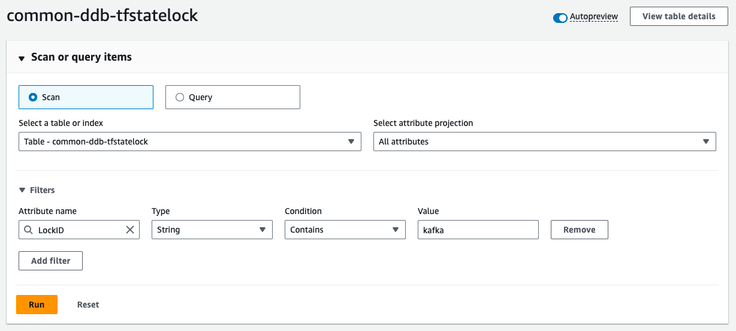
From the results list, select the appropriate entry. Choose
Actions, thenEdit item.Change the value of the
Digestattribute to the one provided in the error message after initializing the Terraform project (checksum for the current Terraform state file, different from the one currently in DynamoDB).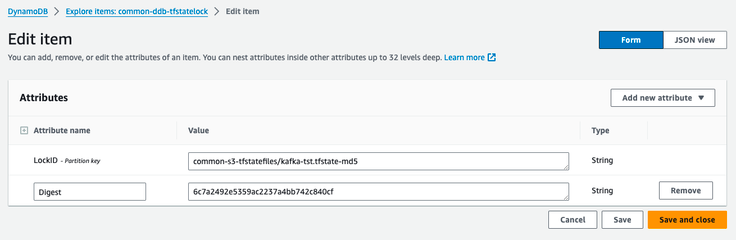
Save the changes.
Reinitialize the project in the console. If the procedure was successful, the error should no longer appear.