SSH Agent
Revision | Date | Description |
|---|---|---|
| 24.07.2024 | Init Changelog |
General
With 1Password SSH Agent you can:
Generate and import your SSH keys.
Autofill public keys in your browser (Git, cloud platforms).
Authenticate all your Git and SSH workflows.
It stores all your SSH keys behind secure end-to-end encryption and works with your existing SSH clients and acts as their key provider.
Requirements
1Password subscription
1Password 8 for Mac
(optional) 1Password extension for browser
Supported SSH key types
1Password supports Ed25519 and RSA key type.
Ed25519
Ed25519 is the fastest and most secure key type available today and is the option recommended by most Git and cloud platforms. Ed25519 is the default suggestion when you generate a new SSH key in 1Password and the key is automatically set to 256 bits.
The Ed25519 key type was first introduced in 2014 with OpenSSH 6.5. If you need to connect to an older server that isn't using OpenSSH 6.5 or later, an Ed25519 key won't work.
RSA
RSA is one of the oldest key types available and is compatible with most servers, including older ones. Compared to Ed25519, RSA is considerably slower – particularly with decryption – and is only considered secure if it's 2048 bits or longer. 1Password supports 2048-bit, 3072-bit, and 4096-bit RSA keys.
Import an SSH Key
If you have an SSH key you want to save in 1Password, you can import it.
In your 1Password app:
Open and unlock 1Password, then navigate to your Personal or Private vault.
Click New Item and choose SSH Key.
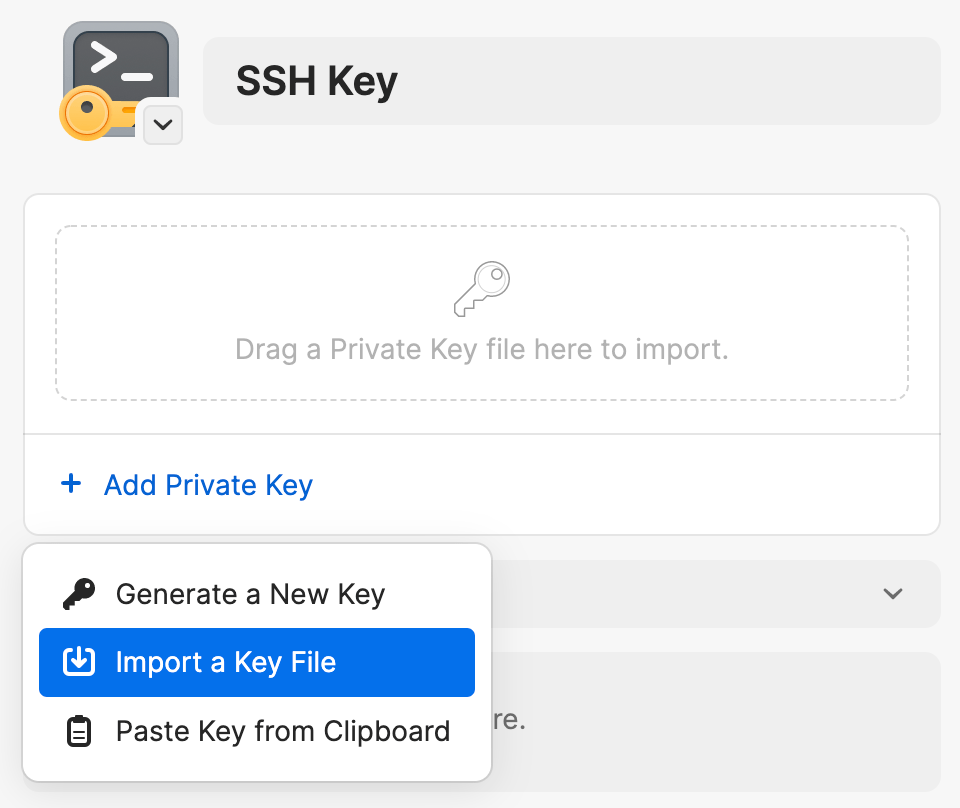
Click Add Private Key → Import a Key File, navigate to the location of SSH key you want, then click Import. You can also drag and drop your SSH key file directly into the new SSH item or paste it from you clipboard.
If your SSH key is encrypted with a passphrase, enter the passphrase and click Decrypt.
When you’re done, click Save.
Generate and SSH Key
In your 1Password desktop app:
Open and unlock 1Password, then navigate to your Personal or Private vault.
Click New Item and choose SSH Keys.
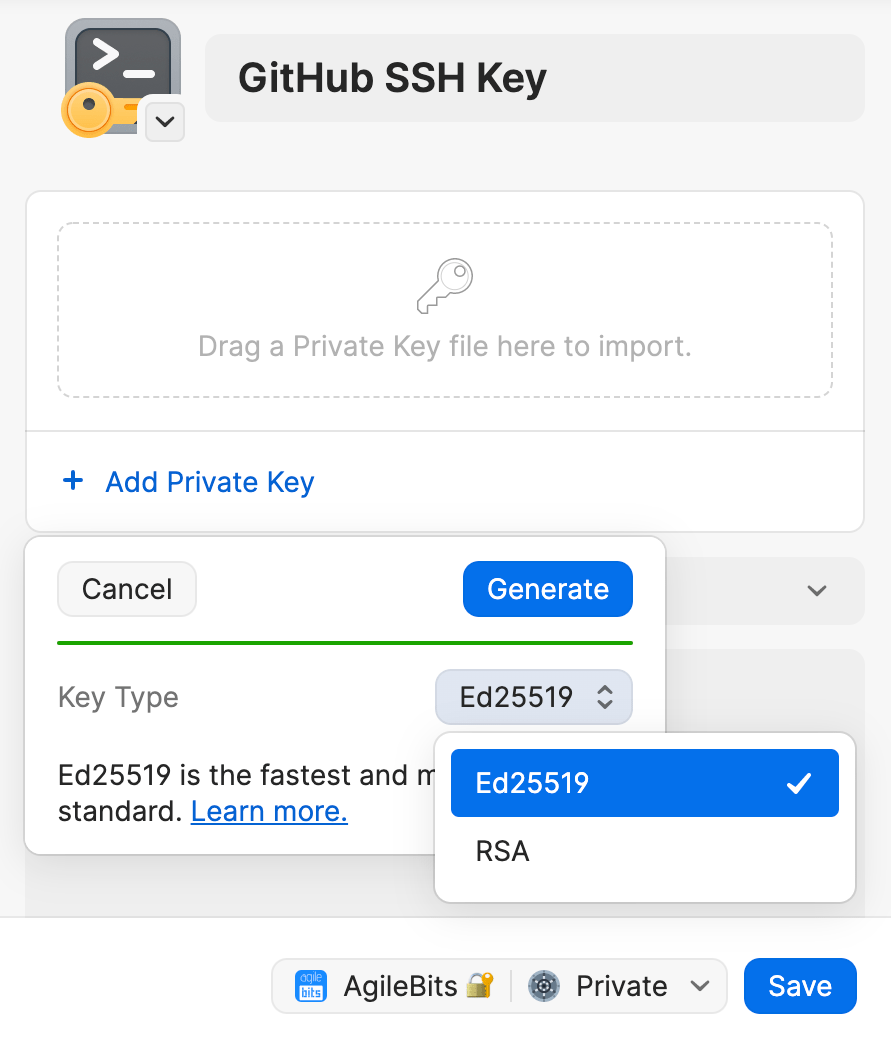
Click Add Private Key → Generate New Key.
Select and SSH key type: Ed25519 or RSA, then click Generate.
When you’re done, click Save.
1Password will generate your SSH key, including a public key, fingerprint, and private key.
Turn on the 1Password SSH Agent
The 1Password 8 desktop app includes an SSH agent that, when turned on, runs in the background to handle authentication for your SSH clients.
The agent will only use SSH Keys that are saved in your Personal or Private vault to authenticate SSH requests. If your SSH keys are stored in a different vault, the agent will ignore them.
Follow the steps to turn on the SSH agent:
Open 1Password and choose 1Password → Preferences → Developer.
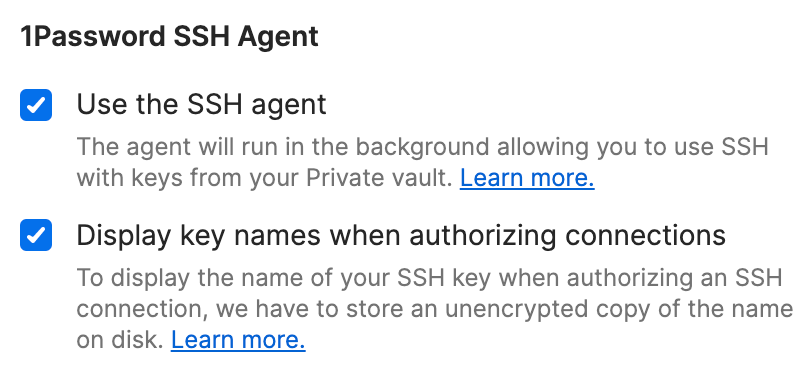
Select the checkbox to Use the SSH agent.
Optional: Select the checkbox to Display key names when authorizing connections.
To make sure the SSH agent keeps running, even when the 1Password app is closed:
Open 1Password and choose 1Password → Preferences → General.
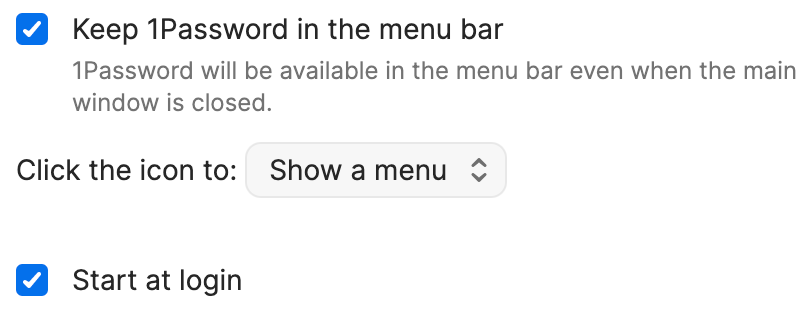
Select the checkboxes to Keep 1Password in the menu bar and Start at login.
Configure your SSH
After you turn on the SSH agent in 1Password, the last step is to configure your SSH client to use the agent for authentication. On Mac, add the IdentityAgent to your config file or set the SSH_AUTH_SOCK env variable.
Add the IdentityAgent snippet to your ~/.ssh/config file:
If your ~/.ssh folder or config file does not exist yet, create it first:
You can also set the SSH_AUTH_SOCK env variable in the shell where your SSH commands runs:
Now your SSH clients will use the 1Password SSH agent for all hosts.
SSH server six-key limit
SSH agents work together with SSH clients by trying all public keys the agent is managing, offering them one by one to SSH servers until the server acknowledges one that works. However, OpenSSH servers are configured by default to limit the amount of authentication attempts per incoming SSH connection to six tries.
If your SSH client offers the SSH server a seventh key, the server will refuse the connection, and you'll see this error message in your SSH client:
Too many authentication failures
Server administrators can increase the limit by setting MaxAuthTries in the server’s /etc/ssh/sshd_config, but in many cases you do not want to change this.
Instead, you can specify which host should be matched to which SSH key by doing following:
In your 1Password app, click Download button on the public key field of the SSH item.
In your
~/.ssh/configfile, add an entry for the host you’re connecting to and setIdentityFileto the path od the public key your just downloaded. The private key can stay in 1Password.Host github.com IdentityFile ~/.ssh/public-key-downloaded-from-1password.pub IdentitiesOnly yes
Now your SSH clients will know which key to use when connecting to SSH servers, so you won’t run into there authentication limits.