Root mode
Revision | Date | Description |
|---|---|---|
| 24.07.2024 | Init Changelog |
Introduction
"Rooting" typically refers to gaining root access or administrative privileges on a device or system. However, when it comes to 3D printers like the Creality Ender 3, the term "rooting" may not be the most accurate. Instead, users often refer to "flashing firmware" or "installing custom firmware."
Flashing custom firmware on a 3D printer like the Creality Ender 3 allows users to customize and enhance the printer's capabilities beyond what the stock firmware offers. This can include features like thermal runaway protection, additional customization options, improved print quality, and support for different types of filaments.
Requirements
Firmware of the Ender3 V3 KE is updated to at least v1.1.0.12.
Printer is connected to your network.
You need to have access to equipment (computer, server, etc.) with the ability to connect to resources within your network using the SSH protocol.
Turn on root permissions
To "root" or flash custom firmware on a Creality Ender 3, you typically need to follow these steps:
Turn on your printer.
On Nebula Pad go to:
Settings>System.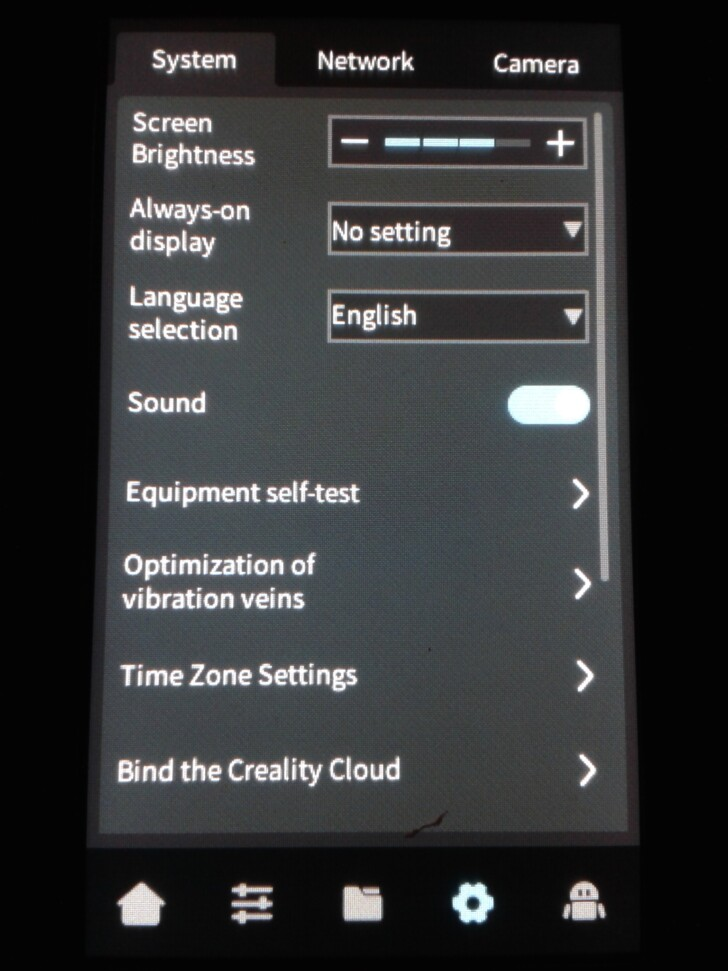
Choose
Root account information.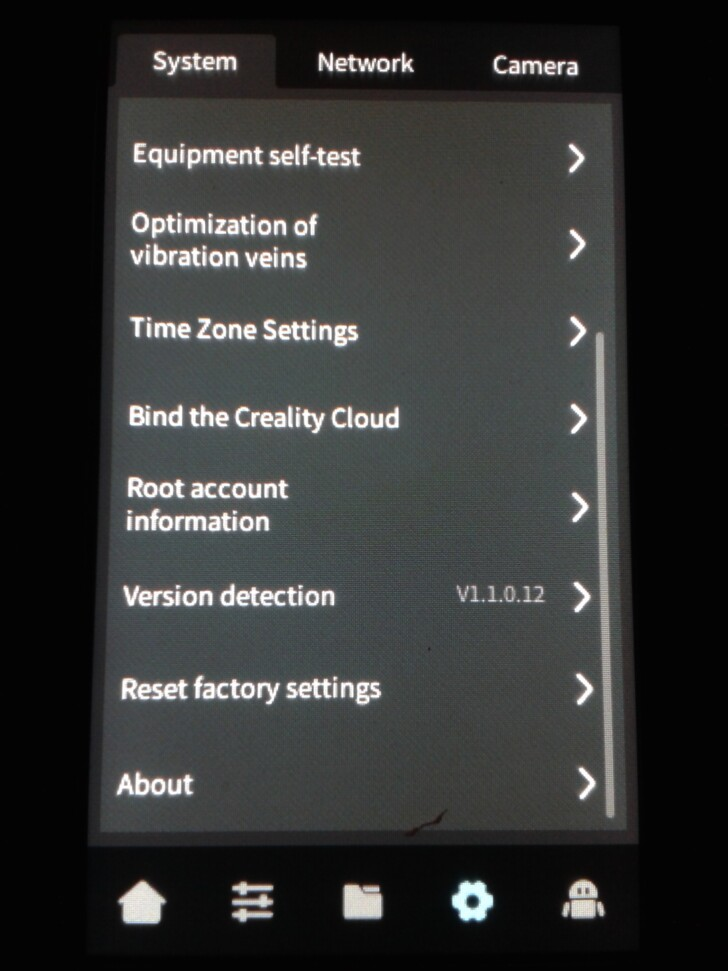
Accept
Root Disclaimer and Risk Warning.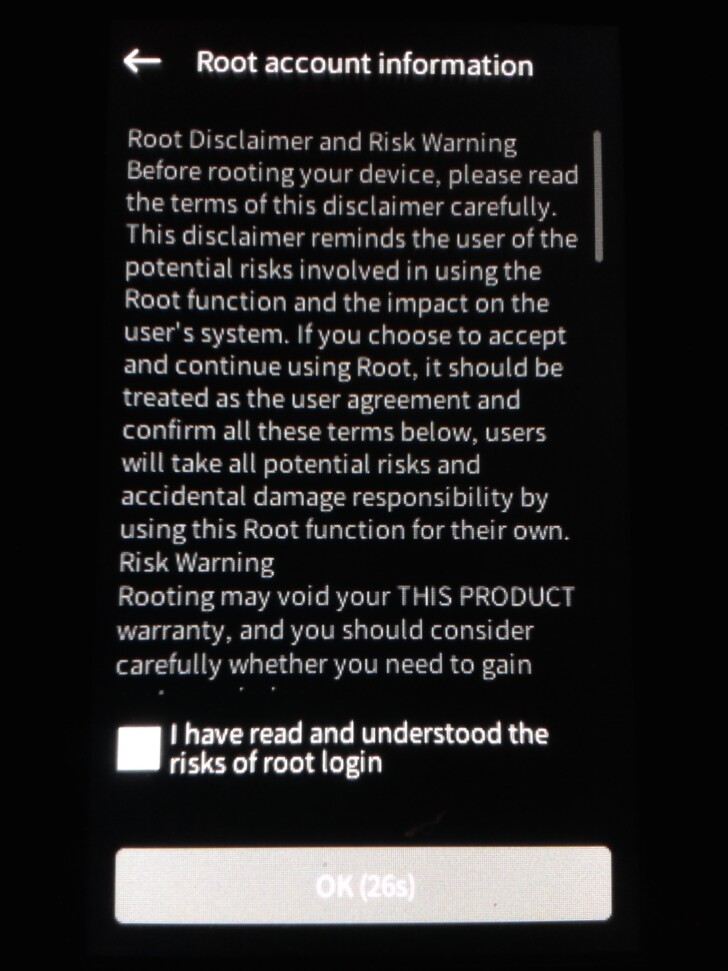
Wait
30sand confirm withOKbutton.Note
AccountandPassword.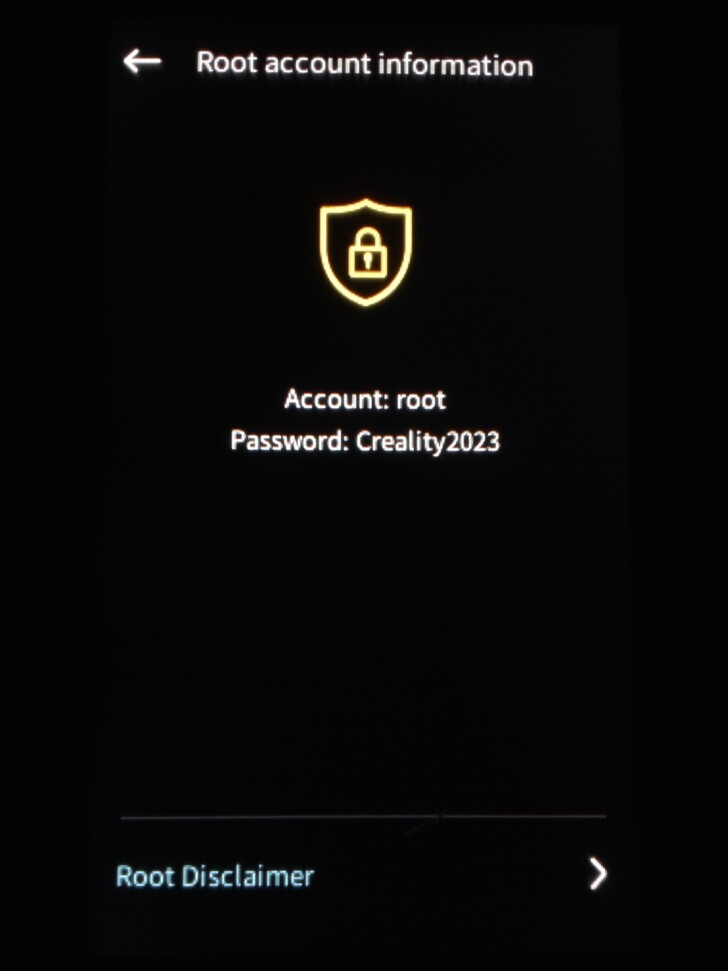
Check if in
Settings>System, next toRoot account informationthere isRootsign.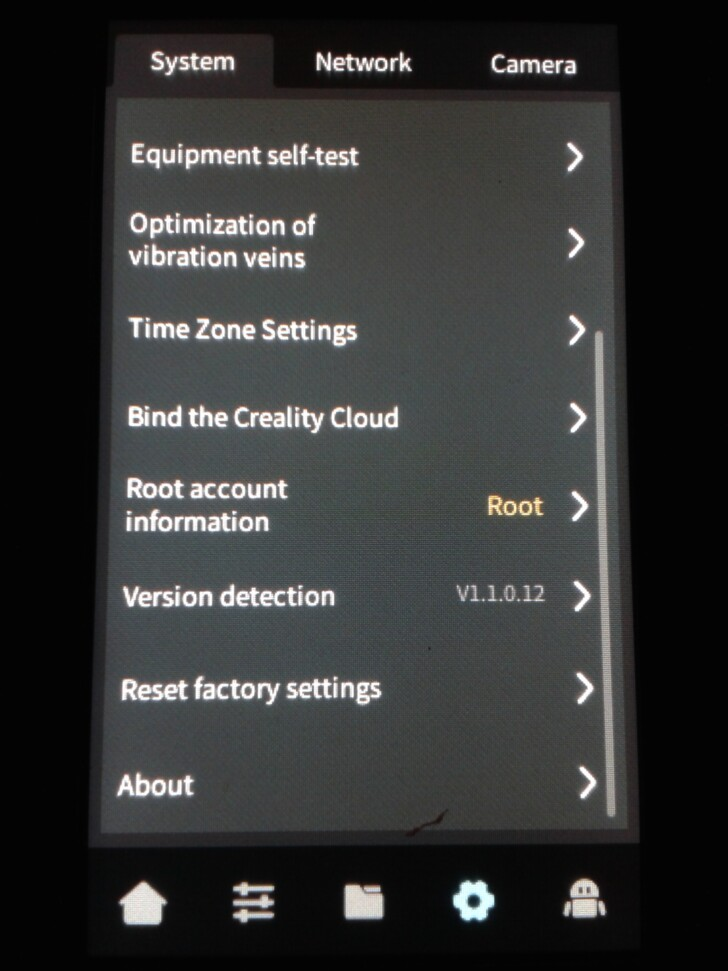
Connect to printer
To connect to Ender3 V3 KE, you need to follow these steps:
Turn on your printer.
On Nebula Pad go to:
Settings>Network.Connect Printer to your network via Wi-Fi and note
IP address.From your terminal, connect to printer via SSH using account name and password.
Change password
Good practice is to change the default "root" password to a personalized password, with command: