Disaster Recovery
Revision | Date | Description |
|---|---|---|
| 26.08.2024 | Init document |
Introduction
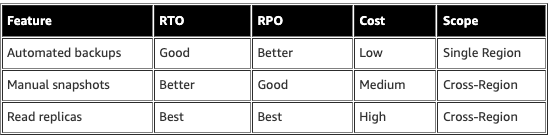
Organizations often incorporate a range of standard methodologies in developing their disaster recovery (DR) plans for Amazon RDS, tailoring these strategies to meet their specific Recovery Time Objective (RTO) and Recovery Point Objective (RPO) targets. RTO is a measure of the longest acceptable downtime your application can endure, whereas RPO quantifies the maximum data loss your application can sustain.
In a production environment, it's crucial to implement safeguards to facilitate recovery in case of unforeseen events. Despite Amazon RDS offering a highly reliable MultiAZ configuration, it doesn't provide absolute protection against all potential hazards, such as natural disasters, malicious attacks, or logical corruption of a database. Therefore, it's integral to the continuity of business operations to not only design a robust DR plan but also regularly test its effectiveness.
When formulating a DR plan, two essential considerations are the recovery time objective (RTO) and recovery point objective (RPO). RTO is a measure of the maximum time in hours required to restore operations after a disaster, while RPO, also quantified in hours, estimates the potential volume of data loss during a catastrophe. For instance, an RPO of one hour implies the risk of losing up to an hour's worth of data in the event of a disaster.
Backups
Database backups are an essential element of any disaster recovery (DR) plan. With Amazon RDS, you have access to two forms of backups: automated backups and manual snapshots.
The rules for Amazon RDS backups are as follows:
The DB instance must be in the ACTIVE state for backup operations to take place.
While a copy operation is in progress within the same region for the same DB instance, automated backups and automated snapshots are not performed.
The initial snapshot of a DB instance encapsulates the full data of that DB instance.
Following the first snapshot, all subsequent snapshots are incremental, meaning they only capture and store the most recent changes to the data.
In a Multi-AZ configuration, backups are executed on the standby instance to minimize disruption to the primary instance.
Automated
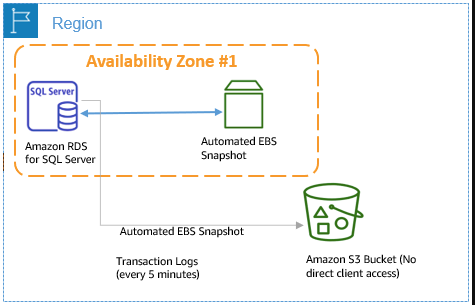
Amazon RDS's automated backup feature is enabled by default. It takes a snapshot of your DB instance's storage volume, backing up the whole instance rather than individual databases. The inaugural backup is a full instance backup, while subsequent backups are incremental, encompassing only the data blocks that have been modified since the previous backup. Every snapshot contains links to all necessary data blocks to reconstruct it. Even if an earlier snapshot is deleted, there won't be data loss as long as at least one snapshot references the data.
The automated backup window is a randomly assigned weekly timeframe within an 8-hour block for each AWS Region, during which automated backups are created. However, I highly recommend scheduling the backup window during off-peak hours to avoid excessive server load.
With automated backups enabled for your DB instance, Amazon RDS automatically takes a full daily snapshot during your preferred backup window. It also transfers transaction logs to Amazon S3 every 5 minutes as your DB instance is updated. Archiving these transaction logs is a crucial part of your DR process and Point-In-Time Recovery (PITR). When a PITR is initiated, transaction logs are applied to the most fitting daily backup to restore your DB instance to a specific requested time.
When deleting a DB instance, you have the option to keep its automated backups. This could be beneficial if you later decide to restore the DB instance. Preserved automated backups include automated snapshots, transaction logs, and DB instance properties like allocated storage and DB instance class, which are necessary to reactivate it. These retained automated backups can be restored or deleted using the AWS Management Console, Amazon RDS API, or AWS CLI.
Pros
Convenience: AWS handles the backup process for you.
Point-in-time recovery: You can restore your database to any second during your retention period, up to the last five minutes.
Automatic: Backups are taken within a defined window and no manual intervention is needed.
Included in cost: The storage used by automated backups is provided at no additional cost, up to the size of your provisioned database.
Cons
Limited retention: The maximum retention period is 35 days.
Potential impact on performance: Although typically minimal, there might be a small latency increase during the backup process.
Recovery time: Restoring from a backup involves creating a new DB instance, which can take some time.
Cost
The storage for automated backups is free, up to the size of your provisioned database. If your backups exceed the size of your provisioned database (for example, due to transaction logs), you pay standard Amazon S3 rates for the extra storage.
Manual
Database snapshots are user-initiated, complete backups of your DB instance, functioning as full backups. They are stored in Amazon S3 and retained until you deliberately remove them. These snapshots, encompassing the entire DB instance including data and temporary files, can be replicated and distributed across different Regions and accounts. The creation time of the snapshot is influenced by the size of the DB instance.
Making a DB snapshot on a Single-AZ DB instance results in a brief I/O pause, the duration of which depends on your DB instance's size and class. In contrast, Multi-AZ DB instances avoid this I/O interruption as backups are conducted from the standby.
In Amazon RDS, both automated and manual DB snapshots can be duplicated. The copy of a snapshot is classified as a manual snapshot. You have the flexibility to copy a snapshot within the same AWS Region, across different Regions, and even across AWS accounts. Transferring a DB snapshot to another AWS Region results in a manual DB snapshot in that Region. Replicating a DB snapshot out of the original AWS Region incurs Amazon RDS data transfer costs.
Amazon RDS allows you to share DB or cluster snapshots with other AWS accounts, which can be beneficial if you're worried about potential disruptions from "bad actors" in your primary accounts. Up to 20 AWS accounts can share manual DB snapshots. However, automated Amazon RDS snapshots can't be directly shared. To share an automated snapshot, you need to make a manual copy and then share that copy. Manual snapshots using custom option groups with persistent or permanent options such as Transparent Data Encryption (TDE) and time zone can't be shared. Similarly, snapshots using the default Amazon RDS encryption key (aws/rds) can't be directly shared; you need to create a copy using a custom encryption key and then share both the key and the copied snapshot.
In case of a disaster, a new DB instance can be created by restoring from a DB snapshot. During restoration, you select the snapshot from which to restore and provide a new name for the new DB instance. Important considerations during restoration include:
Existing DB instances cannot be directly restored from a DB snapshot; a new instance is created during the process.
While it's possible to restore a DB snapshot to an instance with a different storage type, this slows down the restoration process due to additional data migration work.
Encrypted shared DB snapshots cannot be used to restore a DB instance. You have to create a copy of the DB snapshot and restore from that copy.
Retaining the parameter group of created DB snapshots is recommended to facilitate restoration with the correct parameter group.
By default, the option group associated with the DB snapshot is linked to the restored DB instance. A different option group can be associated, but it must contain any persistent or permanent options that were in the original option group.
Finally, Amazon RDS DB snapshots can be integrated with AWS Backup, a fully managed backup service for centralizing and automating backups across AWS services, both in the cloud and on-premises. AWS Backup allows you to centrally establish backup policies and oversee backup activity for your AWS resources.
Pros
Longer retention: You control the retention of these backups. They remain until you delete them.
Flexibility: You decide when to take these snapshots according to your business requirements.
Can be copied to other regions: Useful for regional disaster recovery.
Cons
Manual intervention: Requires someone to create and manage the snapshots.
No point-in-time recovery: Snapshots capture the state of the database at the moment the snapshot is taken.
Recovery time: Similar to automated backups, restoring from a snapshot involves creating a new DB instance.
Cost
The storage for DB snapshots is billed at standard Amazon S3 rates. You pay for the storage used by the snapshot for as long as you keep it.
Read Replicas
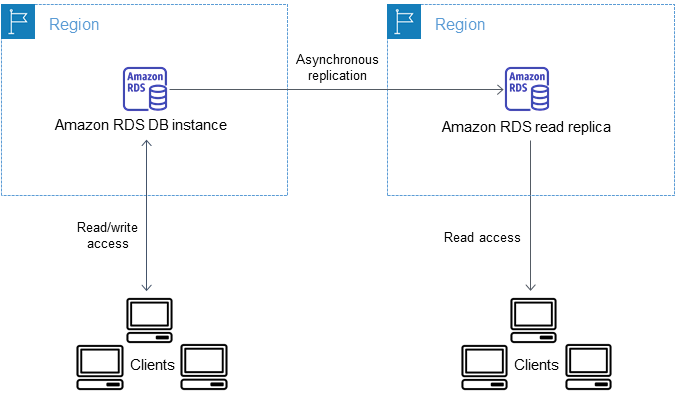
Amazon RDS supports the creation of Read Replicas. When a Read Replica is created, Amazon RDS initiates a snapshot of the source DB instance and subsequently generates a read-only instance. Any changes made to the source DB instance are updated on the Read Replica through the DB engine's asynchronous replication method. Operating as a read-only DB instance, the Read Replica can be connected to applications just like any other DB instance. All objects from the source DB instance are replicated in the Read Replica. By default, the Read Replica mirrors the source DB instance's instance and storage type, though it can be set to a different storage type. Up to five Read Replicas can be created per source DB instance.
Besides load reduction on the source DB instance, Read Replicas can also be used as part of a disaster recovery (DR) plan for your production database environment. In the event of a source DB instance failure, a Read Replica can be promoted to function as a standalone source server. Furthermore, Read Replicas can be established in a different region than the source database, offering a cross-region solution to potentially mitigate regional availability disruptions.
A critical metric to monitor in a Read Replica is the replica lag or the time disparity between the replica and the source database. This lag, which could impact your recovery, can fluctuate based on network latency between regions and the volume of replicated traffic. The recovery time after a disaster is generally lower with Read Replicas due to their running DB instances, although this option can be costlier than automated backups or database snapshots.
However, unlike in an Amazon RDS Multi-AZ setup, failover to a Read Replica isn't automatic. If you're utilizing cross-region Read Replicas, it's crucial to be sure of your decision to switch AWS resources between regions as it could result in latency and complicate application reconfiguration.
After promoting a cross-region Read Replica to a standalone instance, if you decide to revert to the original region, a new Read Replica has to be created. Again, this process isn't automatic as it would be in an Amazon RDS Multi-AZ configuration.
Pros
Helps in distributing read traffic and hence can increase application performance.
Can be promoted to the master DB in case of a disaster, providing an additional disaster recovery option.
Cons
There is a cost associated with running extra DB instances. There can be a replication lag depending on the amount of write operations on the master DB. The promotion of a Read Replica to a standalone DB instance is a manual process.
Cost
Each Read Replica is charged at the same rate as a standard DB instance
Cross-Region Replication
Cross-region replication is about having your data replicated in a different AWS region. This is especially useful for disaster recovery, providing protection against regional failures.
You can create cross-region Read Replicas for your RDS databases. In the event of a regional disaster, these replicas can be promoted to become the new primary DB instance. Note that this involves manual intervention, unlike the automatic failover provided by Multi-AZ deployments.
Also, you can copy DB snapshots and automated backups across regions manually, or you can set up AWS to automatically copy them to another region. This can be useful if you need to restore your database in a different region quickly.
Pros
Provides protection against regional failures.
Can serve as a disaster recovery solution as well as a strategy for placing data closer to users in different geographical locations.
Cons
There are data transfer costs associated with cross-region replication.
Replicas need to be manually promoted in case of a disaster.
Cost
Cross-region replication incurs costs for inter-region data transfer. You are also charged for running the DB instance in the second region.
Point in time recovery
AWS RDS Point-In-Time Recovery (PITR) is a feature provided by Amazon Web Services (AWS) as a part of its Relational Database Service (RDS). It allows you to restore your database to any second during your retention period, up to the last 5 minutes. This feature is incredibly useful in case of a database failure, accidental deletion, or data corruption, as it allows for a precise rollback and recovery.
Below steps describe how the PITR is actually working.
Enable automated backups: To use the PITR feature, you first need to have automated backups enabled for your RDS instance. The backup window is a specific time during which AWS RDS creates backup data, taking a snapshot of your database.
Set the backup retention period: The backup retention period is the length of time in days that AWS RDS retains automatic backups. You can set the backup retention period from 1 to 35 days.
Choose a restoration point: To perform the point-in-time recovery, you need to specify a restore time. AWS RDS then creates a new DB instance, with the state restored to the time you specified. You can choose any point within your set backup retention period, up to the last 5 minutes.
Create a new DB instance: After you've chosen the recovery point, AWS will create a new DB instance. Note that the new instance won't replace the existing one - it will exist alongside it. This is useful because it allows you to compare the recovered data with the current data before deciding whether to switch over to the recovered database.
Switch over (if necessary): If you decide to use the restored database, you would typically rename the existing ( possibly corrupted) database, then rename the new, recovered database to match the original name. This allows your applications to switch over to the recovered database without any code changes.
The PITR feature is available for most of the database engines provided by AWS RDS, including MySQL, MariaDB, PostgreSQL, Oracle, SQL Server and Amazon Aurora.