Flow Rate
Revision | Date | Description |
|---|---|---|
| 17.02.2025 | Init document |
Introduction
Calibrating the Flow Rate (Extrusion Multiplier) is a crucial step in improving print quality, especially if you're experiencing issues with under- or over-extrusion.
Requirements
Test Print
The best way to calibrate is by printing a thin-walled object:
Prepare a 20x20x20 mm cube model in Orca Slicer:
Top Layers = 0
Bottom Layers = 1-2 (to ensure adhesion)
Infill = 0%
Perimeters = 1
Line Width = 0.42 mm (do not change it to 0.4 mm!)
Flow Rate = 100% (as a starting point)
Print and measure the wall thickness using calipers.
If the measured thickness differs from 0.42 mm, calculate a new Flow Rate value.
Flow Rate Adjustment Based on Line Width

Too Much Filament
Set Line Width: 0.42 mm
Measured wall thickness: 0.46 mm
Flow Rate set to 100%
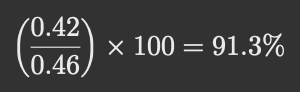
→ New Flow Rate: 91%
Too Little Filament
Set Line Width: 0.42 mm
Measured wall thickness: 0.38 mm
Flow Rate set to 100%
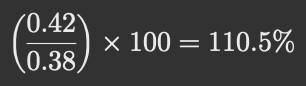
→ New Flow Rate: 111%
Applying the Adjustment in Orca Slicer
Orca Slicer → Filament Settings → Flow Rate (Extrusion Multiplier)
Enter the new value.
Reprint the test model.